


Security teams are being asked to protect more data, across more systems, than ever before and often without a clear view of what that data actually contains. As data volumes continue to grow, the ability to accurately identify sensitive information is no longer optional. It’s a foundational requirement for meeting both internal security standards and external regulatory obligations.
In many organizations, sensitive data still lives in ungoverned tables, duplicated across systems, or accessible to users who shouldn’t have access at all. Too often, these exposures only come to light after an incident, audit finding, or regulatory inquiry.
Without a clear understanding of what data is sensitive and where it resides, security teams are left reacting to risk instead of reducing it. This is where data classification becomes essential.
ALTR native classification provides teams with the capability to create bespoke classifiers that can be used to identify patterns within data and associate these data with classification categories.
Following discovery and classification security teams can then apply the relevant controls to the underlying data to meet the required access restrictions on that data.
Using ALTR Native Classification
ALTR’s native data classification engine scans your data sources for potential risks while maintaining complete security of the underlying data. Because the scans take place entirely within the confines of your cloud provider account no data is exposed to any external agents.
Let’s walk through using ALTR native classification.
As with all classification methods we need to set up our data source that stores the data we wish to classify.
The workhorse of the ALTR native classification system is the classifier. This is a regular expression (regex) that is used to match specific text patterns within your data.
You Might Also Like: Discover Sensitive Data with Ease Using ALTR Data Classification
Classifiers
The first step is the creation of the classifier itself. From the navigation pane, under Data Classification, we have the Collections menu option. This screen displays an overview of the classifiers and collections currently defined within the system.
The default screen shows all the available classifiers together with any collections that have been created.
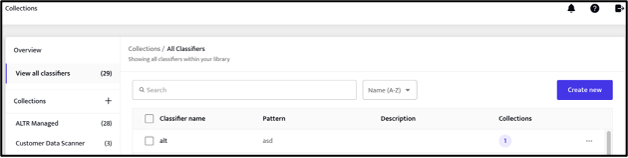
The ALTR Managed collection is a set of predefined classifiers provided, and maintained, by ALTR that can optionally be imported into the product.
Click on the “Create New” button to add a new classifier.
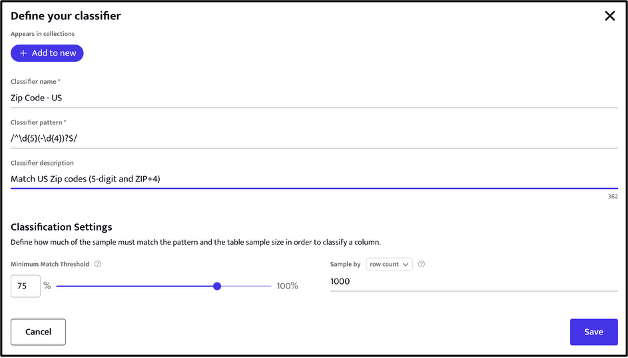
The regex code should adhere to the RE2 syntax and can be developed to provide bespoke pattern matching that is unique to your data.
The Minimum Match Threshold slider control sets the percentage of rows within any column being examined that are required to contain text matching the classifier regex for that column to be identified as containing, in the example shown above, US Zip codes.
Given that tables etc. in today’s data sources range in size from thousands to billions of rows the Sample by slider control allows for fine grained selection of the data sample to be used when classifying data.
Two approaches are provided:
- Set number of rows.
- Set percentage of the total rows in the table.
Using the appropriate selection here allows representative data samples to be taken from both small and large tables.
For convenience, when creating a new classifier, it is possible to add the classifier to existing collections via the “Add to New” button. Clicking this button displays any existing collections – select each collection that the new classifier should be included within.
Collections
Having created our classifiers, we can now group them as required into collections. A collection is simply a convenient construct that allows us to run a classification scan using one, or more, classifiers against a data source.
Clicking the + icon (next to the Collections label) allows the creation of a new collection.
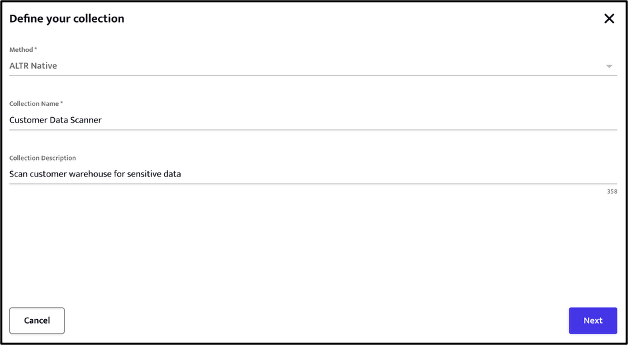
Next, we can optionally add any predefined classifiers into our collection.
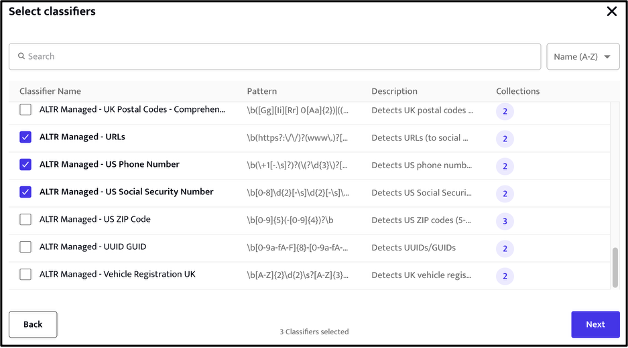
Finally, we review and save the collection.
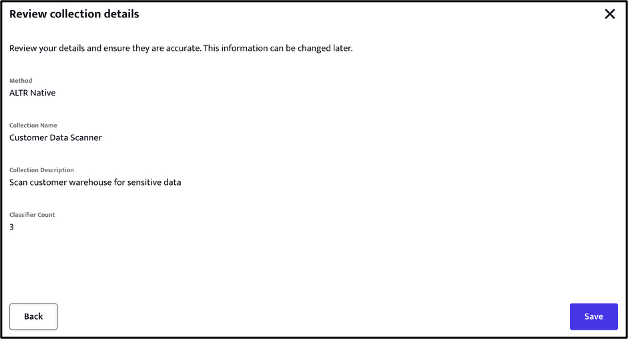
At this point we have now defined one or more classifiers together with one or more collections containing these classifiers. We can use these collections to classify data within our data sources.
Classification
Under the navigation pane, under Data Classification, we have the Classification Reports menu option.
The default upon entry lists any previously run, or currently running, data classification scans. Click on any existing row shown in the list to view the details of that classification scan.
A new data classification scan can be initiated by clicking the “Classify Data” button which displays the following:
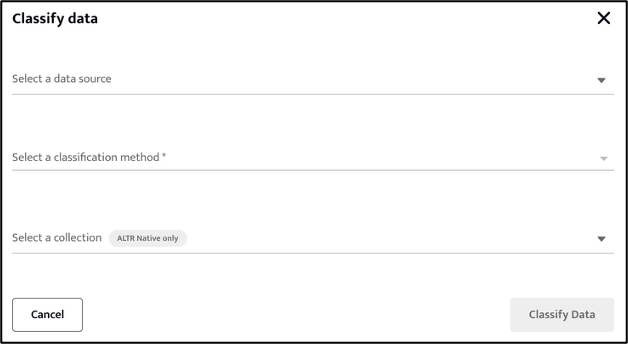
Select the data source against which the scan should be run. The available classification methods include the previously available Snowflake and Google DLP options together with the new ALTR Native option.
Selecting the ALTR Native method enables the selection of a collection.

Clicking the “Classify Data” button will submit the classification scan for execution against the selected data source. The progress of any classification scan can be seen in the Classification Reports screen.

Once completed the outcome of the classification scan can be examined by viewing the associated classification report.
Pausing and cancelling scans
For ALTR Native classification scans clicking the kebab menu (…) provides additional control allowing the pausing, or cancellation, of an active scan.
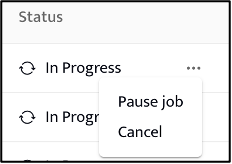
Paused jobs can be restarted at a later time. Cancelled jobs cannot be restarted.
Reports
As already mentioned, any previously completed classification scan can be viewed through the Classification Reports menu. Active scans can be monitored but results will not be available until the scan is completed.

Once completed clicking on the report will display the outcome of the classification scan.
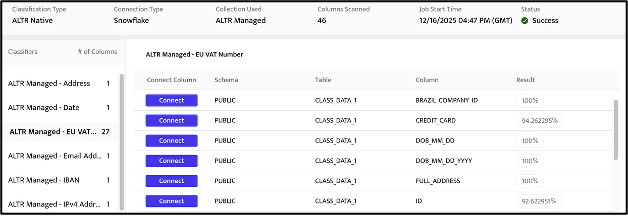
The results of the classification show the classifiers used in the scan together with the columns identified as matching the regex defined within a given classifier.
Clicking on an individual classifier name will show the matched columns. The percentage of the scanned sample within each column matching the regex is also provided (note this value is indicative – depending on the sample size / data this figure can vary between scans).
Ready to make your data visible — and secure?
Let ALTR help you classify, tag and protect what matters most. Book a product tour.